

Samsung Galaxy J7 Prime SM-G610F/DS/DD Firmware (Stock ROM). G610FXWU1BRD1 The following information was last updated on July 11th, 2018: We’ve compiled a list of all available stock firmware for the Samsung Galaxy J7 Prime smartphone. Using the How to Install Samsung Galaxy J7 Prime Stock Firmware instructions below, you may flash the Stock Firmware on your Samsung Galaxy J7 Prime. We will update the Samsung Galaxy J7 Prime Stock Firmware collection for all models on this list. Android 6.0.1 Marshmallow was installed out of the box on the Samsung Galaxy J7 Prime.
Table of Contents
Samsung Galaxy J7 Prime SM-G610F/DS/DD Firmware (Stock ROM)
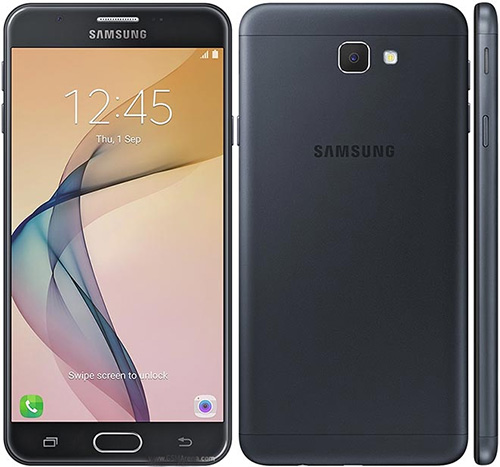
About Samsung Galaxy J7 Prime:
The Samsung Galaxy J7 Prime has a 5.5-inch display with a 1080 x 1920 pixel resolution. The phone is equipped with a 1.6 GHz Octa-core Exynos 7870 Octa processor and 3GB of RAM. The phone has an inbuilt capacity of 16/32 GB that can be extended up to 256 GB with a microSD card. The Samsung Galaxy J7 Prime has a 13MP rear camera with autofocus and LED flash, as well as an 8MP front camera.
The Samsung Galaxy J7 Prime comes pre-installed with Android 6.0.1 Marshmallow with a Li-Ion 3300 mAh battery with fast charging. On the front, there is also a fingerprint sensor. Bluetooth, WiFi, USB OTG, FM, 3G, and 4G are among the connection choices.
The Advantage Of Stock Firmware
- Flash Stock To Unbrick your Samsung Galaxy J7 Prime
- Flash Stock ROM to Fix the Bootloop problem
- Upgrade and Downgrade Samsung Galaxy J7 Prime
- Unroot or Fix Bugs on your phone
- To fix the lag or stutter on Samsung Galaxy J7 Prime
- By flashing Stock ROM, you can solve software problems.
- Revert back to stock to gain your warranty.
List of Samsung Galaxy J7 Prime Stock Firmware collection
Pre-Requirements:
- Supported for: Samsung S7 Edge G935L model only.
- Samsung Kies software Download from above and install it on your PC.
- Install the Samsung USB Drivers on your PC as well.
- You have to install the latest ODIN Flash Tool on your PC.
- A Windows PC/Laptop and a USB cable is required.
- Keep your device fully charged or above 60%.
- Take a complete Backup of Phone Data Without Root.
- You will also need to enter into the Samsung Download Mode.
Steps to Install Samsung Galaxy J7 Prime Stock Firmware.
Let’s have a look at the pre-requisites before we get started with the procedures to install stock firmware on your Samsung Galaxy J7 Prime.
How To Install Stock Firmware on Samsung Phone Using Odin:
- For your Galaxy machine, download the appropriate stock firmware.
- Extract the firmware zip file’s contents.
- The extracted files would be in the “.tar” or “.tar.md5” file formats.
- Now, on your computer, download and extract the Odin tool.

5. Open the extracted folder and click on the Odin.exe file.
6. You need to connect your Galaxy device to the PC while it is in Download Mode.
7. When you attach your phone to Odin, the CO port will light up.
8. Click the AP button and select the firmware.
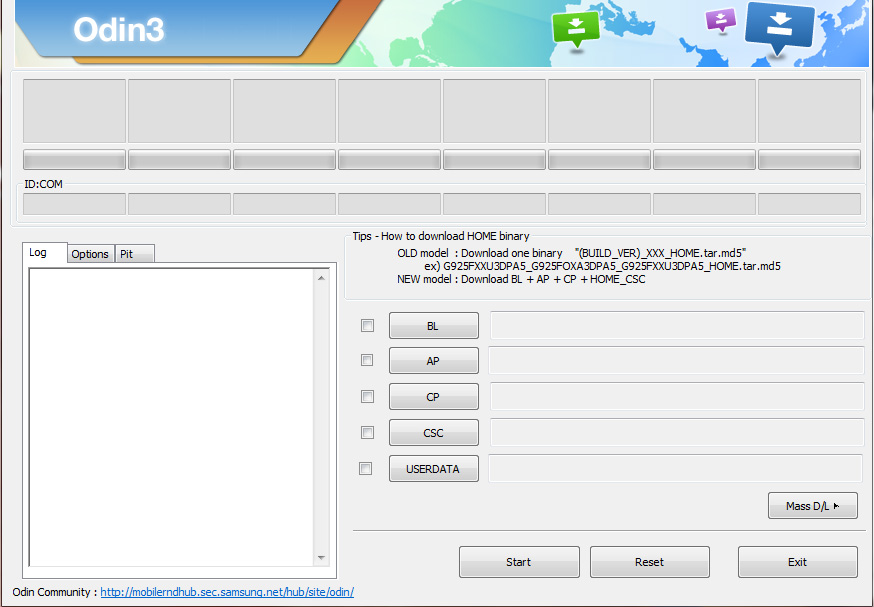
9. Work out the same method for BL, CP, and CSC.
10.Keep in mind that using a standard CSC file will wipe out all of your results. Select the ‘HOME CSC‘ file to save the details.
11. In the Options tab, make sure to choose Auto Reboot and F.Reset Time.
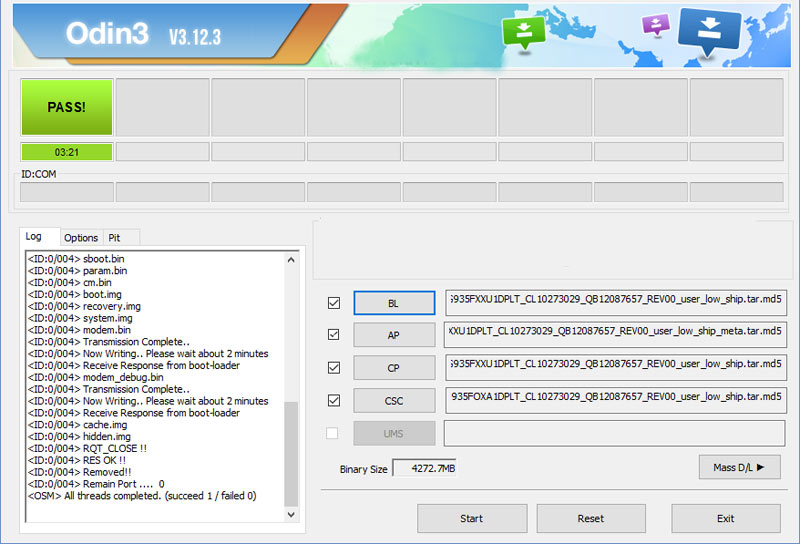
12.To install the firmware on your Samsung smartphone, press the Start button.
13. That concludes our discussion. If the installation is complete, you will see a PASS code.
Troubleshooting:
The following is a list of issues that you might encounter when using the Odin tool to install Samsung firmware. You will easily resolve the problem by following the steps outlined below:
- If Odin does not detect your device, make sure Kies is turned off and that you have the correct Samsung
- USB Drivers installed on your computer.
- Odin’s FAIL message: Make sure you have the right Odin tool installed and that you’re using the correct
- USB drivers. Force the system to shut down and restart from phase 1.
- The computer is stuck in a boot loop: Factory reset your computer by booting into the stock recovery. For a few seconds, hold the Volume Up + Home/Bixby button and the Power key together. Continue to hold the
- Power button when tapping the Volume Up key once on the No command pad.
- Then pick and confirm the Wipe data/factory reset button.

. G610FXWU1BRD1 The following information was last updated on July 11th, 2018)