

![Realme XT RMX1921 Stock ROM [Firmware Flash File]](https://www.mobileremarks.com/wp-content/uploads/2021/08/Realme-XT-RMX1921-Stock-ROM-Firmware-Flash-File.jpg "Realme XT RMX1921 Stock ROM [Firmware Flash File]")
Realme XT RMX1921 Stock ROM (Firmware Flash File). We’ll show you how to install a stock ROM flash file on your Realme XT in this article (Model No: RMX1921). The instructions are straightforward and simple to follow. You can view the entire video tutorial here.
A large number of smartphone fans are interested in learning about the technological elements of smartphones these days. As a result, they continue to adjust the phone’s hardware and software. Unfortunately, they occasionally brick their smartphone. As we all know, when a phone is bricked, it stops working and becomes a paperweight. This is something that can happen to any smartphone. This was an issue for several of our readers with their Realme XT (RMX1921). So, in this post, we’ll show you how to flash a stock ROM on your Realme XT. We’ve included the installation tutorial as well as the download link for the appropriate ROM. So, have a look.
Table of Contents
Realme XT RMX1921 Stock ROM (Firmware Flash File)

Realme XT Specifications: Overview
The Realme XT is the first handset in India to include a 64-megapixel primary back camera, which provides excellent image quality even in low light. A 6.4-inch Super AMOLED Full-HD+ display with Corning Gorilla Glass 5 protection is included with the smartphone. In addition, the in-display fingerprint sensor and Face unlock are both fast and accurate.
The smartphone is equipped with an octa-core Snapdragon 712 SoC, as well as three RAM and storage choices. It’s powered by ColorOS 6.0.1, which is based on Android 9 Pie and will be upgraded to Android 10 in Q1 2020.
The 64MP AI Quad camera system on the back is the device’s centerpiece. The wide-angle and macro lenses provide excellent pictures. For selfies, there’s a 16MP Sony sensor on the front. Ambient light, proximity, magnetic induction sensor, Gyro, Acceleration, Pedometer, G-sensor, and more functions are included. The device incorporates an in-display fingerprint sensor for secure unlocking.
Realme has included VOOC charging with the 4,000 mAh battery. Wi-Fi 802.11 a/b/g/n/ac, Bluetooth 5.0, USB Type-C, 3G/4G LTE, GPS, and other connection options are included in the device. A 3.5mm audio port, Dolby Atmos, Dual Nano-SIM, and a dedicated MicroSD card slot round out the features.
Importance of Stock Firmware
Stock ROM is always been an important part of smartphones. When you move to stock ROM, you can fix up a lot of problems. We have listed the sam below.
- With the help of stock ROM, You can unbrick your Realme XT.
- Solve the boot loop issue on Realme XT (RMX1921).
- You can bypass system Lock and Screen Lock
- Removes any possible case of spyware or Adware in your devices.
- To fix any bugs on your Realme XT.
Firmware Details:
- Device Supported: Realme XT (RMX1921)
- Tool Supported: QFIL Flash tool or Use QCom Download Tool | 2nd Method: MSMDownload Tool or Miracle Box
- Processor: Qualcomm Snapdragon 710 SoC
- Android OS: 9.0 Pie
- File: Software Update
How to Flash Stock ROM on Realme XT (RMX1921)
Before we begin, we must first obtain the ROM file for the target device, the Realme XT. The download link for the same may be found here.
Download Flash Files
| Software Details | Download Links |
| RMX1921EX_11_C.13 | Download |
| RMX1921EX_11.C.11 | Download |
| RMX1921EX_11.C.10 | Download |
| RMX1921EX_11_C.08 | Download |
| RMX1921EX_11.C.07 | Download |
| RMX1921EX_11.C.05 | Download |
| RMX1921EX_11_C.03 | Download |
| RMX1921EX_11_C.02 | Download |
| RMX1921EX_11.A.14 | Download |
| RMX1921EX_11.A.13 | Download |
| RMX1921EX_11.A.12 | Download |
| RMX1921EX_11.A.11 | Download |
| RMX1921EX_11.A.10 | Download |
| RMX1921EX_11_OTA_0100 | Download |
| Full Flash Firmware | Download |
Installation Guide
Before beginning with the installation remember a few pointers we have mentioned below.
Pre-Requirements:
- Please keep in mind that this instruction is just for the Realme XT RMX1921.
- For this instruction, you’ll need a Windows laptop or PC.
- Make sure your Realme XT battery is at least 60% charged.
- Taking a backup of your Android device is always a good idea.
- Any device may be used to back up an Android phone without rooting it.
- On an Android device with a Mediatek Chipset, make a backup of the IMEI and NVRAM.
- Create and restore a Nandroid backup using TWRP Recovery if you have it.
- Install the SP Flash program on your PC after downloading it.
- On your Windows PC, download and install the VCOM Driver.
- Install the most recent driver: Install the most recent version of the Realme USB drivers.
Method 1: Instructions to Install via QFIL Tool:
On your computer, install the Qualcomm Flash image loader utility and USB drivers. To use the QFIL tool to install the firmware, click the link below.
Guide to Install Stock ROM using QFIL Tool
Method 2: Instructions to Install via MSM Download tool:
- Download the MSM Download tool, firmware, and drivers on your PC.
- Now install the USB drivers
- Place the MSM download tool and firmware in the same folder
- Open the MSM download tool and connect your device to PC/Laptop
- Once you connect, it will automatically load the firmware, if not select it manually.
- Click on the start button and wait patiently to complete the installation process.
- Once it is done! remove your device from your PC. That’s it!
Method 3: Instructions to Install via QPST Tool:
QPST Flash Tool
All devices that are powered by Qualcomm Chipset are supported by the QPST Tool. This tool helps you to download and flash the new stock firmware for your device. The QPST tool is free to download and is very easy to use. All features are free of charge on this device. You don’t have anything to pay for.
Simply download and install the software on your Windows computer and use an easy method to flash your Qualcomm devices. Here on this page we managed all versions of QPST Flash Tool (Qualcomm Product Support Tools) and provide direct download links for downloading the setup file from our official servers. Choose the version and click the download button to get the setup file downloaded.
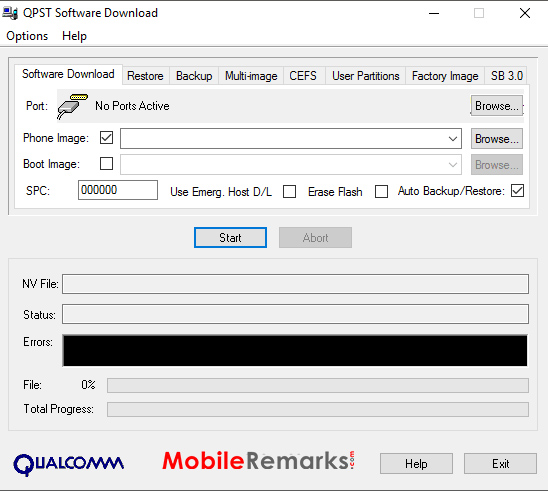
QPST Flash Tool Features:
There are some interesting features that make the QPST Tool better than any other software. The list of some of my favorite features in this tool is shown below:
- Installation: The Package installer makes this tool easy to install. So you need to install it on your Windows computer by double-clicking on the setup file before using this method.
- Configuration: This tool allows you to control activities such as “Active Devices, Active Clients, and also Serial Ports Available”
- Service Programming: This tool also allows you to save programming server data to flash the same programming service file on multiple devices.
- Download Firmware: It lets you download and flash the latest stock firmware for your Qualcomm device on the required device.
Requirements:
- Qualcomm Android USB Driver
- Supported Windows OS (Windows 7,8,10)

. We'll show you how to install a stock ROM flash file on your Realme XT in this article)